Buy Our Tea
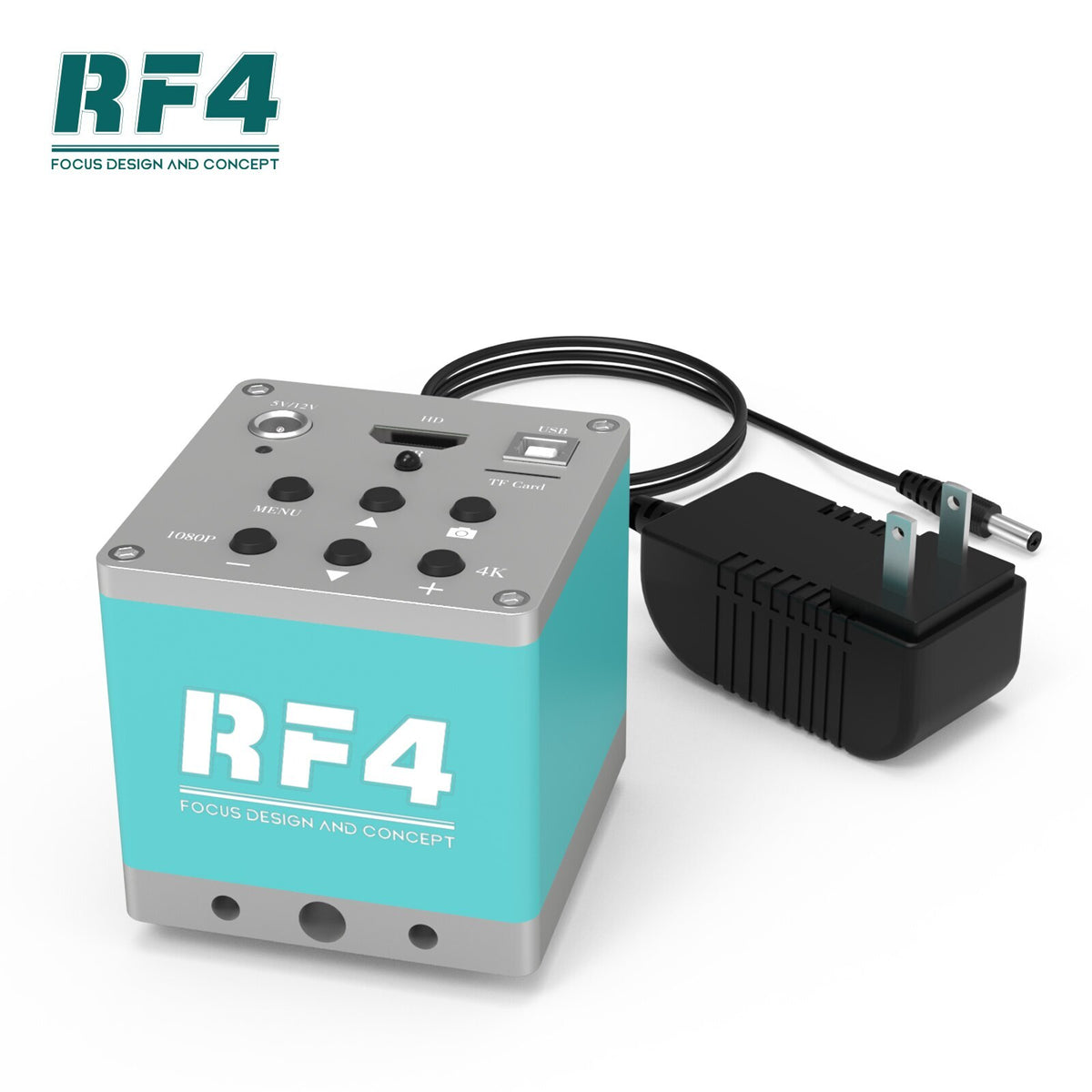
RF4 4KC1 HDMI USB 1080P 60FPS 4K Camera Trinocular Microscope Camera
RF4 4KC1 HDMI USB 1080P 60FPS 4K Camera Trinocular Microscope Camera
Couldn't load pickup availability
RF4 HDMI USB 1080P 60FPS 4K Camera Industrial Electronic Digital Video Trinocular Microscope Camera Observation PCB Maintenance
The equipment parameters
The parameter typesThe parameter value
Sensor Target surface size1/2.8"
The sensor resolution4k/3840*2160@30fps
Output interfaceHDMI 4k@30fps
Mode of operationbutton
Working voltageDC 12V
StorageUsb disk, capacity<=64GB
The lens typeSupports C/CS interfaces
Photograph8 million, JPG
Video3840*2160 avi
Cross curve8 * 8 groups
File ManagerWith
Parameter typespecific parameter
Tip: Hold down the '1080 key' for 10 seconds to 1080P resolution
Hold down the '4K key' for 10 seconds to switch to 4K resolution
Install and use
1. The microscope is connected to the host computer through C/CS interface, and tightened to prevent falling;
2.HDMI connection to monitor. Display should support 3840*2160/1920*1080 resolution;
3. Use USB interface to connect computer for UVC camera;
4. Connect the power adapter to the host through the DC port.
5. The TF card can be used with related functions: taking photos, video recording, playback, etc. If necessary, please insert it;
6. Switch on the power adapter, and the host indicator shows green for 10 seconds.
FAQ:
1. Problem: The power indicator does not change after power on.
Solution: Ensure that the power adapter is powered on properly and the DC connector is not oxidized.
2. Problem: The display does not respond after powering on.
Solution: Solution: Check the following: 1) The HDMI interface is properly connected to the display interface. 2) Display power, switch, input interface selection is normal; 3) Display supports 3840*2160/1920*1080P resolution;
Operation instructions
5.1 Key Operation Instructions
1)Button 1: When there is a storage device, short press to capture, long press to record and stop recording;
2)Press 2, the device will switch in the following states: menu, cross line, playback (when the storage device is plugged in);
3)When the device is in different states, the functions of buttons 3, 4, 5 and 6 are as follows::
1))Menu status: 3 and 4 are used to adjust the highlighted button up and down, 5 and 6 are used to perform key functions or adjust function parameters;
2))Crosshead status: 3 and 4 are used to adjust the highlighted crosshead. 5 and 6 are used to adjust the position of the crosshead.
3))Playback state: 3,4 are used to flip up and down in single screen or multi-screen; 5 are used to switch between single screen and multi-screen; 6 are used to display a single screen and select a picture or video in multi-screen state;
5.2Menu Function description
The main menu:
Precautions for Customer use
1. Insert a usb flash drive before taking photos or videos.
2. Disconnect the power supply when the device is not in use to prolong the service life of the device.
3. Do not insert the power adapter whose voltage exceeds the device limit.
4.Avoid violent collision.


Product rendering